

I recently became involved with troubleshooting a server that is running the Synology Active Backup for Business agent that would lose connection with the remote backup server about every two days. There was no indication of why it was happening, but when it lost connection I noticed that the service would hang starting back up if I manually restarted it. The only way to get it going again would be to either restart the server or force close the agent application and then manually start the service.
After trying in vain to remedy the problem, I decided that I’d just work around the issue by automating the ending of the existing application task and then starting the service. I wrote up a quick Powershell script that would do this. It looked something like this:
stop-process -name 'synology active backup for business service' -force
start-sleep -s 60
start-service 'synology active backup for business service'
Easy enough right? It doesn’t check the status of the service. It just slams it closed, waits a minute, and then starts it back up. There is no risk of losing data by doing it this way since the backup won’t be running when the script is launched. Keep it simple is my mantra.
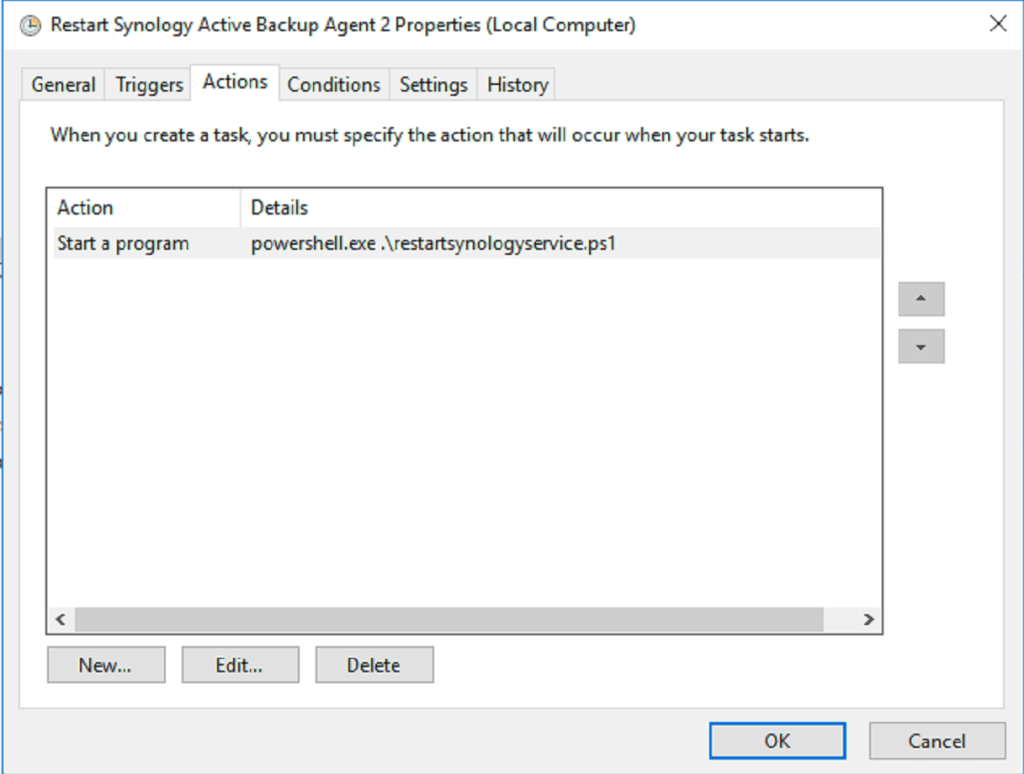
The next step here was to plug this script into a scheduled task to launch daily when I knew the backup wouldn’t be running. This is where a lot of people run into trouble. It used to be as easy as configuring the task to run an application and then choosing the script as the application itself. However, when using Powershell, you need to launch the powershell.exe application and do either one of two things: use .\yourscriptname.ps1 in the arguments field and then type the path to the script in the “Start in” field (eg C:\Scripts\), or simply skip the script creation altogether and just type the script actions directly into the arguments field. Because of the simplicity of this script, I decided on the latter. Here’s a screenshot of both options:

Once you have the trigger and action(s) in place, your last step is to set the task to run elevated. Navigate back to the General tab of the task, and check the option to “Run whether user is logged on or not” and also the option to “Run with highest privileges”. When you click OK you’ll be prompted for a username and password to store with the task. This is the account the task will ultimately run under, so make sure it has administrative privileges to the machine and also has access to any files, directories, or applications necessary to run the actions.
That’s it! Your task should run successfully. I tested my task manually and watched the service end and then finally start back up after the one-minute wait. The backup has run successfully ever since. Now I just need to monitor the releases of the Synology agent to see if perhaps my service-hanging problem is resolved in a future update.
Carl
Comments are closed